Evermotion: More Than an Asset Library
How Evermotion became a full-scale production partner for archviz, automotive and synthetic data.


Total: € 0
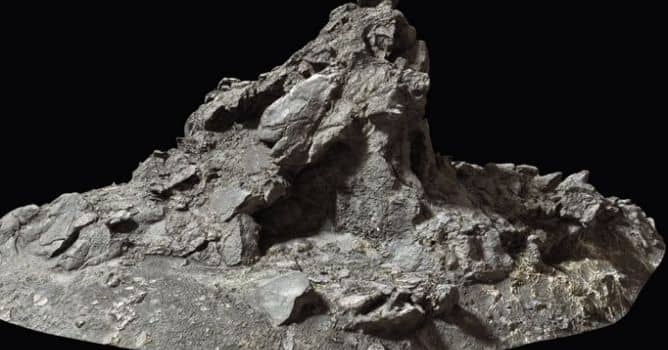

This release comes with an arsenal of Live Links to make your exports faster. Brand new plugins for Autodesk 3ds Max, SideFX Houdini, Marmoset Toolbag, and improvements to our Live Link for Autodesk Maya and Unity are available today.
Live Links are plugins that allow you to connect your favorite software to Quixel Bridge, giving you a one-click solution to export assets from Bridge with pre-defined materials, geometry setups, and displacement support.
Houdini Live Link - The SideFX Houdini Live Link is an extensive and powerful plugin that allows you to import assets from Bridge, scatter them, create custom triplanar setups, create geometry from atlases, and more.
3ds Max Live Link - Rebuilt 3ds Max Live Link from scratch with a new lightweight structure and updated support for Corona, Arnold, Octane, V-Ray, Redshift, and FStorm. Discover the Quixel Bridge
Marmoset Toolbag 3 Live Link - This release of Bridge also packs a full-fledged Live Link for Marmoset Toolbag 3, giving you an incredibly easy workflow for creating scenes, iterating ideas, or prototyping environments within this mesmerizing real-time renderer.
Maya Live Link - The Maya Live Link is getting its first major update with Bridge 2018.5. Redshift, Arnold, and V-Ray have all been updated to the latest version, and their displacement workflows have been dramatically improved.
Channel Packing - Speed up your workflow with dynamic, super fast channel packing in Quixel Bridge. Channel Packing allows Bridge to keep your assets optimized and memory lean during export.
Channel Packing is an optimization technique that minimizes texture files and reduces memory usage — which is great for optimizing your scenes. Multiple textures can be packed into the individual channels of an image and each channel can then be used separately in your application.
How does Channel Packing help improve speed and workflow?
Create your own Live Link
You can easily integrate Bridge with your in-house custom tools, game engines, and plugins. When exporting an asset in Bridge, choose “Custom Export” in the applications menu, enable and set a custom local socket port value, and you’re good to go! You can write the JSON data to a destination folder, or the JSON data can be sent over a local socket port.
Import your own assets
The latest Bridge release comes with a much-anticipated importer for your own custom assets. The new importer allows you to organize, manage, and search through all your assets in one place — right inside Bridge. You can now also import Megascans asset zips or folders, in addition to your own custom assets. Simply drag and drop in Bridge.
Once your asset library is available inside Bridge, you can leverage the power of Bridge Live Links as well. Live Links give you one-click exports to your favorite 3D tools without having to manually set up materials or textures.
The custom assets you import will appear in the new “External” filter in the left-hand-side panel. This filter appears once you’ve imported at least one custom asset. And any Megascans assets you import will be available in your local library and appear in the “Downloaded” filter, as usual.
Deep search
The full power of Bridge’s advanced deep search is now available on all filters. This makes searching through your imported assets quick and easy.
And there’s more…
More info: Quixel Bridge Site




LEAVE A COMMENT





|

|

|

|

|
 Customer zone
 Your orders
 Edit account
 Add project
 Liked projects
 View your artist profile

COMMENTS