We use cookies to provide you with the best possible experience. They also allow us to analyze user behavior in order to constantly improve the website for you.
The consent is voluntary. You can withdraw it at any time or renew it in Cookie settings on the home page. Withdrawal of your consent does not affect the lawfulness of processing performed before the withdrawal.
Privacy Protection Policy
While specifying the 3D Print Settings, select Print To: Local. Now, select PDF File or SVX File as the Printer.
Control bump map depth
You can now control the depth or height of bump maps for printing. Follow these steps:
Open a 3D file containing a bump map.
In the 3D panel, choose Scene. Now, switch to the 3D Print Settings tab in the Properties panel.
Use the Min and Max fields to specify a new depth for the bump maps
Under Surface Detail, specify appropriate values for the Min and Max fields. These fields determine the new depth of the bump maps.
Updated PLA profile for Makerbot. The Makerbot PLA profile has been updated for more reliable print outs.
Simplify meshes in preparation for printing
3D imaging
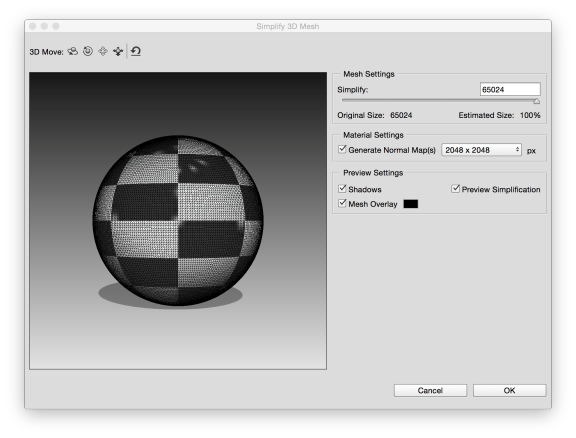
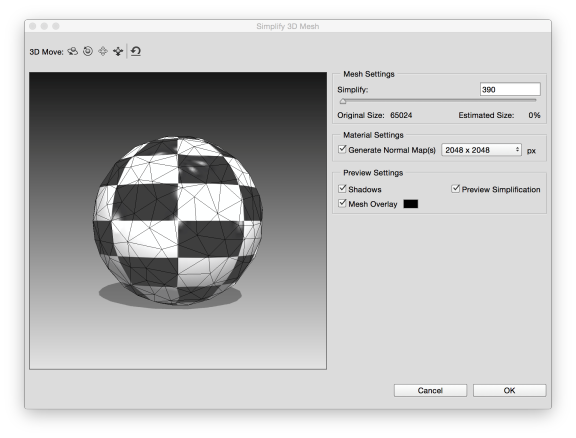
Simplify meshes. The 3D menu now has a new command (3D > Simplify Meshes) that lets you reduce the number of triangles in a mesh to a more manageable number. The command algorithmically reduces the number of triangles to the number you specify while attempting to maintain the fidelity of the model. This enhancement is useful for reducing the complexity of a file in preparation for 3D printing. You can view a live preview of mesh simplification changes before they're implemented.
Preview mesh simplification changes
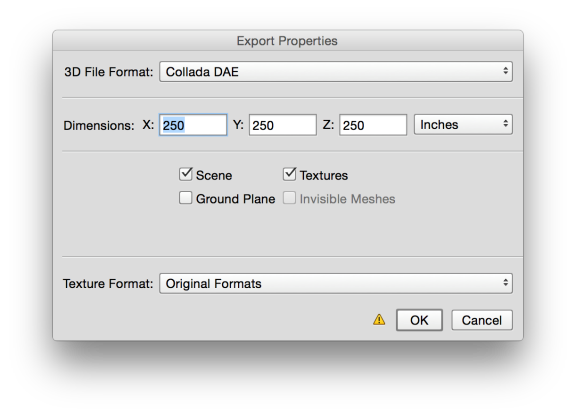
Improved export UI. The UI for exporting 3D layers as Collada DAE, Flash 3D, Google Earth KMZ, 3D PDF, STL, U3D, VRML, and OBJ formats is now improved.
Select 3D > Export 3D Layer.
Export a single mesh. A 3D scene typically comprises many elements or meshes. You can now right-click a mesh in the overall scene and export it individually. Right-click the mesh in the 3D Panel and then choose Export Mesh from the context menu. This functionality currently exports meshes only in Collada or KMZ formats.
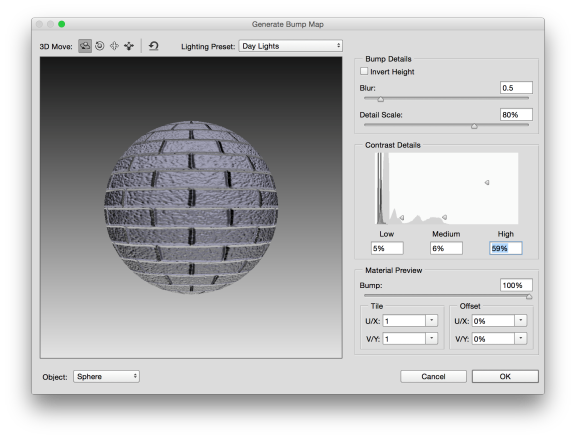
Generate better bump maps and normal maps. Photoshop now lets you tweak your bump or normal maps using tools like Blur, Detail Scale, and High/Medium/Low Frequency. Select Filter > 3D > Generate Bump Map or Filter > 3D > Generate Normal Map.
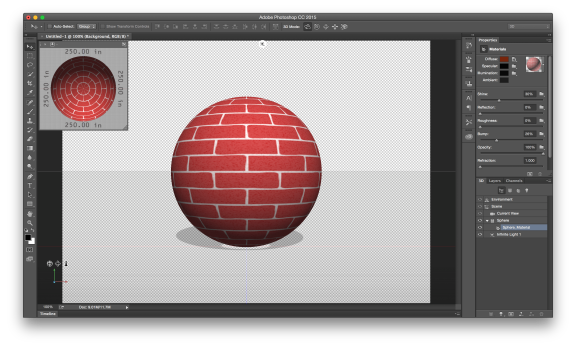
Create bump maps or normal maps from diffuse textures. You can now create bump maps or normal maps from diffuse textures. The texture attached to the diffuse texture is automatically loaded as filters for the purpose of creating bump maps or normal maps. Once you're satisfied with the way your map is looking, Photoshop applies the generated bump map or normal map to those textures. Follow these broad steps:
Open the file containing the diffuse map.
Ensure that the desired texture is selected in the 3D panel. The desired texture is selected in the 3D panel
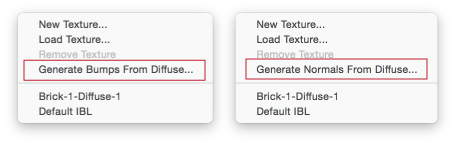
Click the folder icon next to Bump or Normal in the Properties panel.Now, from the context menu, select Generate Bumps From Diffuse or Generate Normals From Diffuse.
Specify appropriate settings in the Generate Bump Map or Generate Normal Map dialog.
Click OK. Photoshop generates the map.
Convert a vertex color to a texture color. 3D-scanned PLY files typically have vertex colors and no textures. You can convert a vertex color to a texture color. Do the following:
Open the PLY file.
In the Layers panel, under Textures in a 3D layer, double-click the diffuse to open the texture.
Select 3D > Create Painting Overlay > Vertex Colors.
Working in CG and archviz often means balancing creative intent with production realities. Human presence can support scale, context, and clarity, but it also adds another layer of decisions. Ready-made 3D character assets help keep visual focus where it belongs without expanding the project scope beyond its real needs
In professional visualization, buildings are more than background elements. They define context, scale, and clarity for industrial and commercial projects. Well-prepared 3D building models help viewers read a scene instantly and understand its purpose without relying on technical descriptions or supporting text
The production pipeline in CG and visualization is built on a sequence of clear decisions. Each stage depends on how information is defined, shared, and preserved. 3D models serve as digital assets that translate abstract ideas into structured visual data and consistently carry them through to the final render
In professional CG and architectural visualization, efficiency depends on structured decision-making and reliable resources. Using grouped 3D assets allows us to focus on scene logic, composition, and project consistency instead of repetitive asset preparation and library management.
3D furniture models support structured, predictable interior design workflows in professional archviz. In projects where deadlines, coordination, and visual consistency matter, ready-to-use assets reduce friction and enable teams to focus on spatial decisions rather than repetitive preparation.
In this walkthrough, we guide you through the process of building a polished 3D interior scene inspired by the cover of Archmodels vol. 306 – Table Sets.















 Customer zone
 Your orders
 Edit account
 Add project
 Liked projects
 View your artist profile
COMMENTS