Evermotion: More Than an Asset Library
How Evermotion became a full-scale production partner for archviz, automotive and synthetic data.


Total: € 0

In an effort to increase model performance, you no longer have to create Layers upon Layers. You can do your main model organization straight within Outliner. Developers recommend using this (and friendly eyeball icon) to toggle between the major chunks of your model like main floor plans.
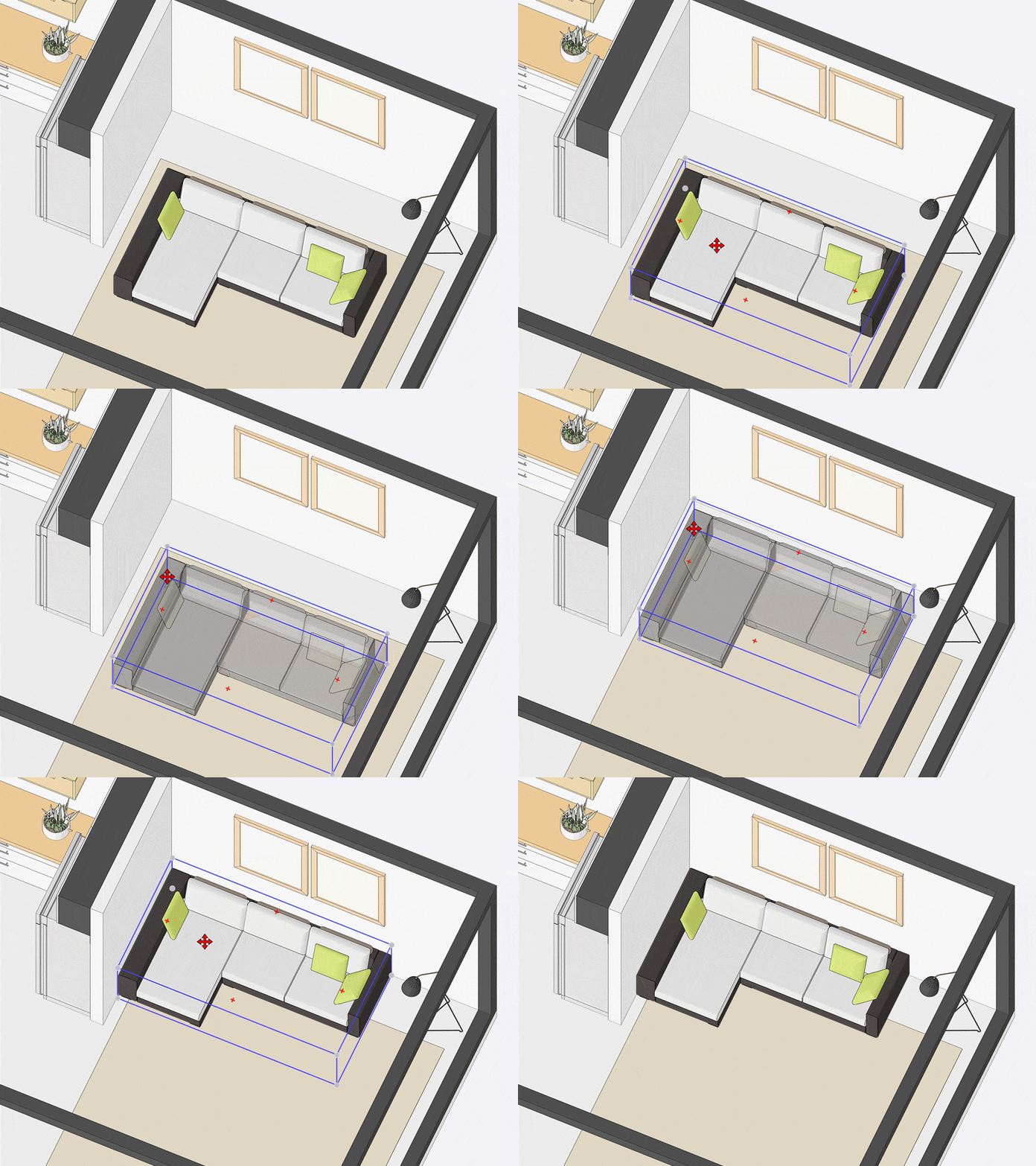
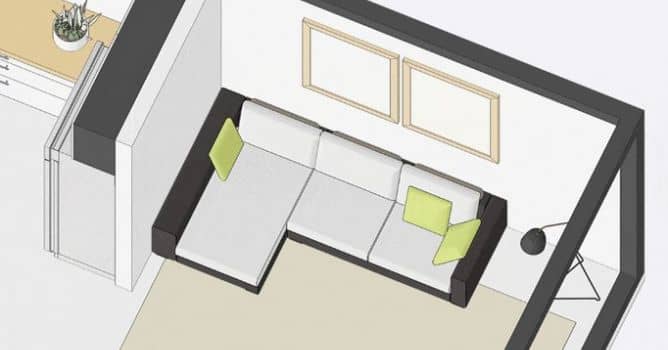
Grips on bounding boxes - Grab that sofa and put it in the corner.
When you grab a point that is obscured in an object (like a back corner or a center point) and start to move it, your object will automatically go transparent as soon as something in your model interferes with the object you are moving. This works with both the Rotate tool and Move tool.
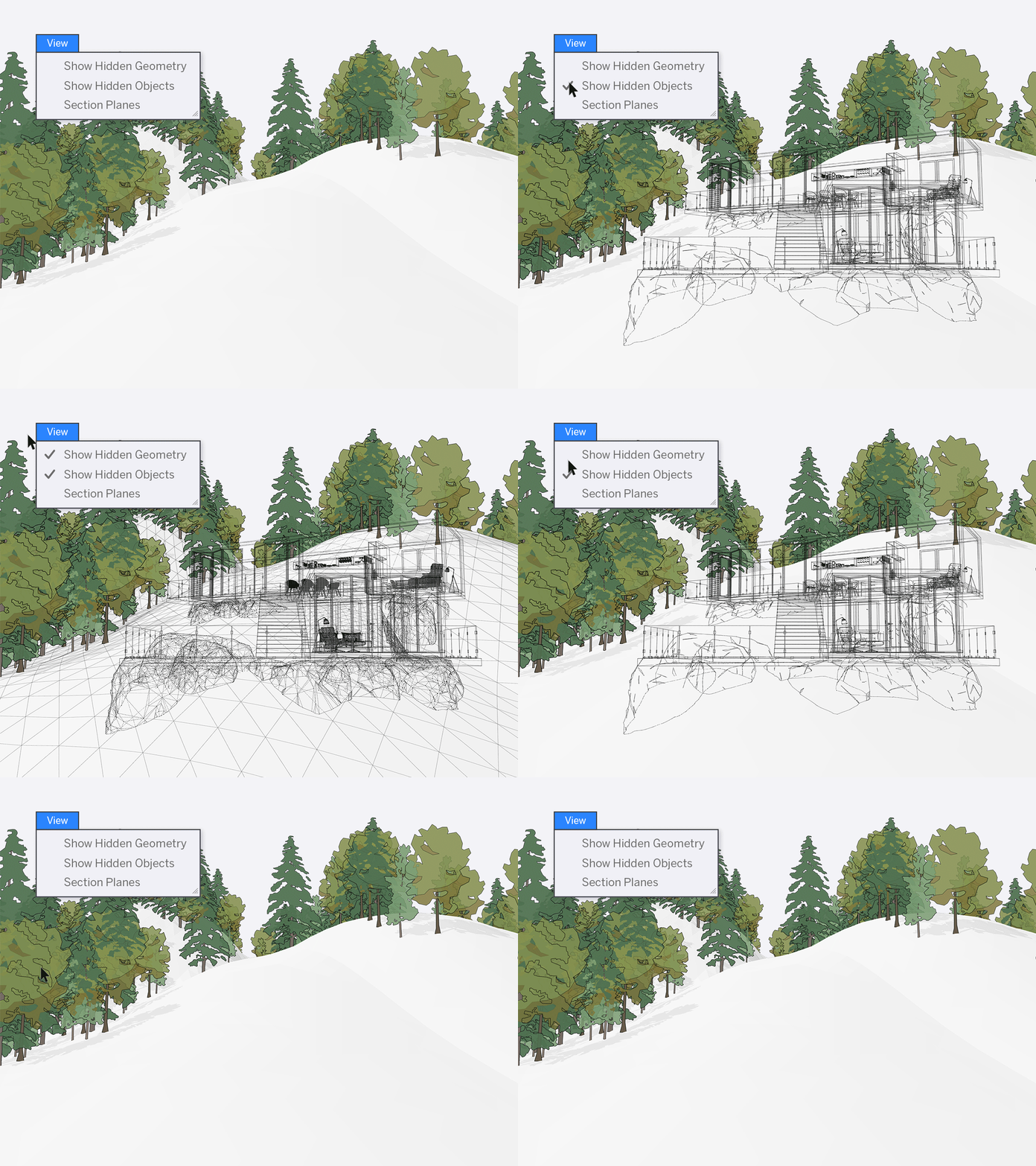
Announcing a big change to hiding objects in your models. You’ll notice in your drop-down menu that we decoupled hiding objects from hiding geometry. How will this change your workflow? Well, this will give you the ability to better manage hidden geometry and hidden objects for an even easier modeling experience. For example, let’s say you want to edit hidden edges in a landscape or smoothed surface, but you still want to be able to hide objects that are nearby (like trees, bushes, or a building).
LayOut 2020: document control
It’s all about taking back control... document control that is! Developers focused on improving the interaction between SketchUp and LayOut. Way less going back and forth updating scenes in SketchUp to ensure your drawing comes out perfectly. Now you have more editing ability right in LayOut.
Model Views
LayOut now understands a lot more about your SketchUp model and what you’ve overridden. Meaning, you can safely change a style or camera angle directly in LayOut without accidentally losing your changes. When you make changes in LayOut, parts of the menu bar will go dark gray, alerting you that you’ve made an override. You can always resync your viewports back to your SketchUp model if you need to.
Customization
Take those LayOut docs to the next dimension with different models and views. If you have one SketchUp model that exists across several viewports, you can now relink just one of those viewports to another SketchUp model. Previously, you would need to delete that viewport, insert a new SKP model, and reset all your scale settings and viewport sizing. More efficient now? Yes!
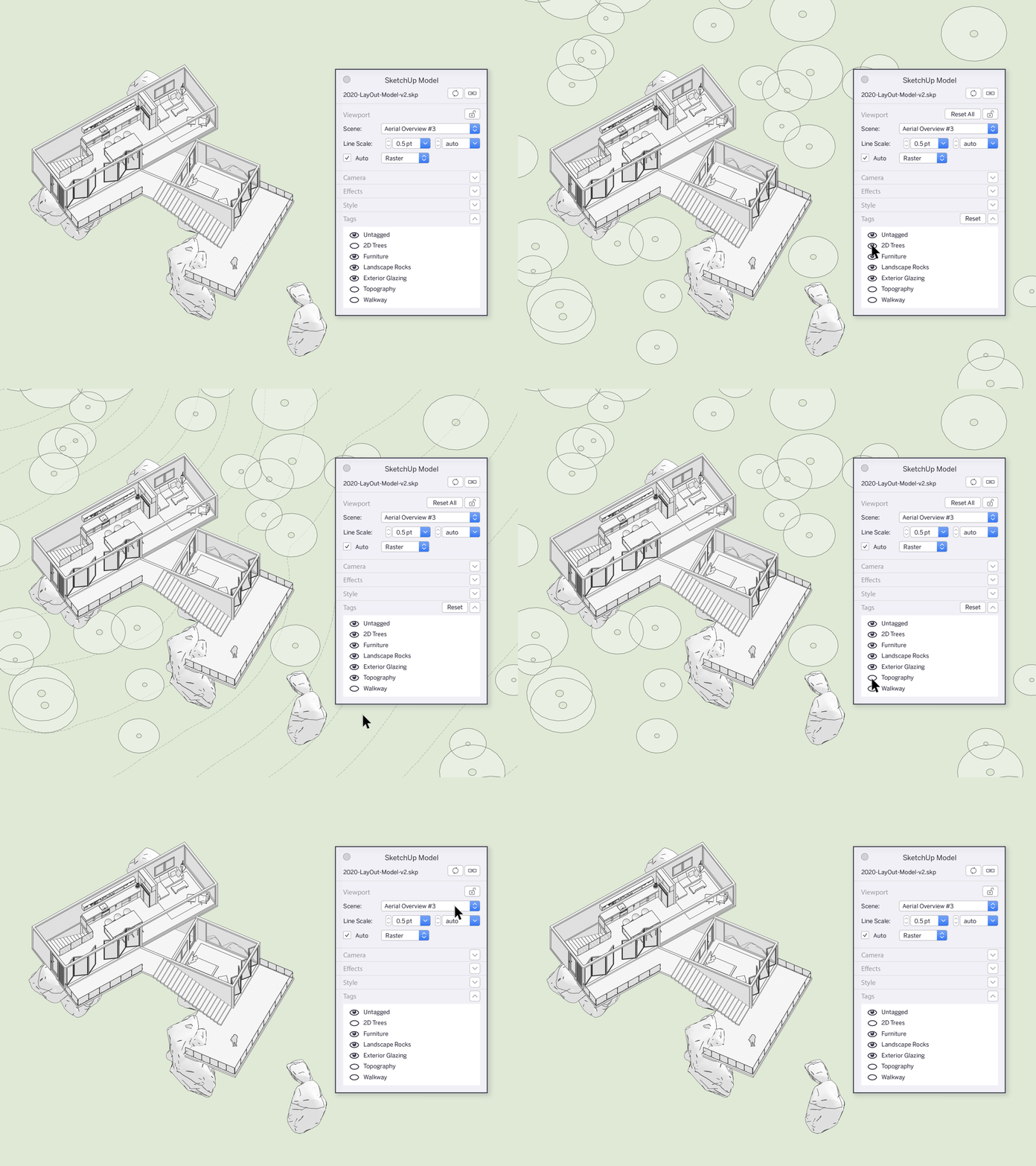
You also have the ability to toggle tag visibility — straight in your LayOut. This means you don’t have to create extra scenes just for your LayOut files, saving you a ton of time going back and forth between LayOut and SketchUp.





LEAVE A COMMENT





|

|

|

|

|
 Customer zone
 Your orders
 Edit account
 Add project
 Liked projects
 View your artist profile
COMMENTS