First of all thank you for reading this! Since this particular project is consisted of 10 completely different scenes I chose to explain the crucial parts instead of walking you through with only one scene.
I had the chance to visit this building personally 2 years ago. As a matter of fact I found it out of pure luck just by wandering in the forest in Tallinn. It was 2 years ago as I said and I knew it immediately that I will do my 3d version of this at some point. And when it came I started with gathering all the information I could find on the internet. I downloaded literally all the photos I could get my hands on.
Modeling
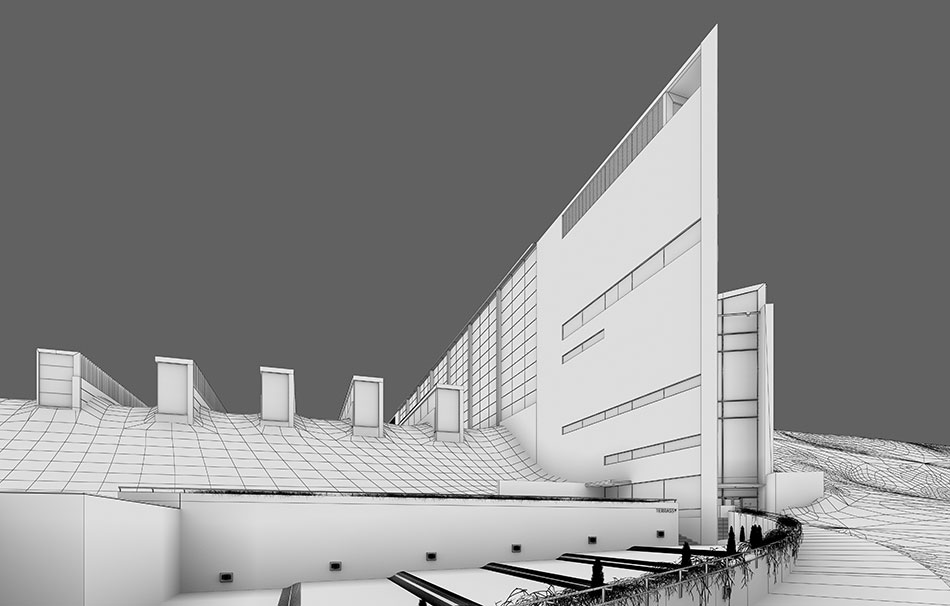
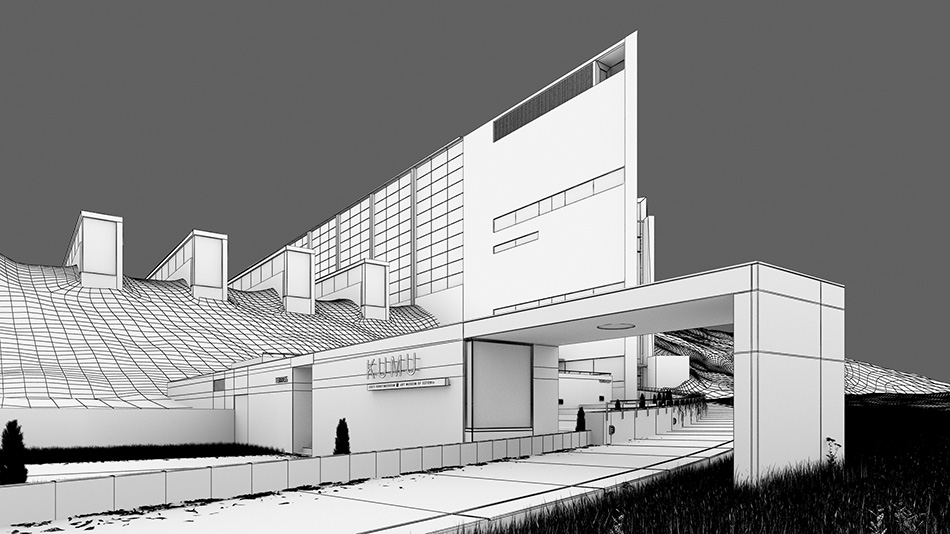
A big help was that I found a digital model of the building on the net. And even though I eventually had to remodel each and every element I still owe Ankit Surti and Samuel Gwynn a huge thank. Their model was mandatory! I didn't want to model the environment since there's a vast amount of renders out there on the subject and I already had my share of that in the Normafa House project. In fact I wanted to avoid that as much as I could. All the trees in the background and foreground are 2d elements put there in Photoshop. There is an article coming out in 3d Artist magazine issue 17 about the modelling of the scene. If you are interested in this part you can read it there.
The snow
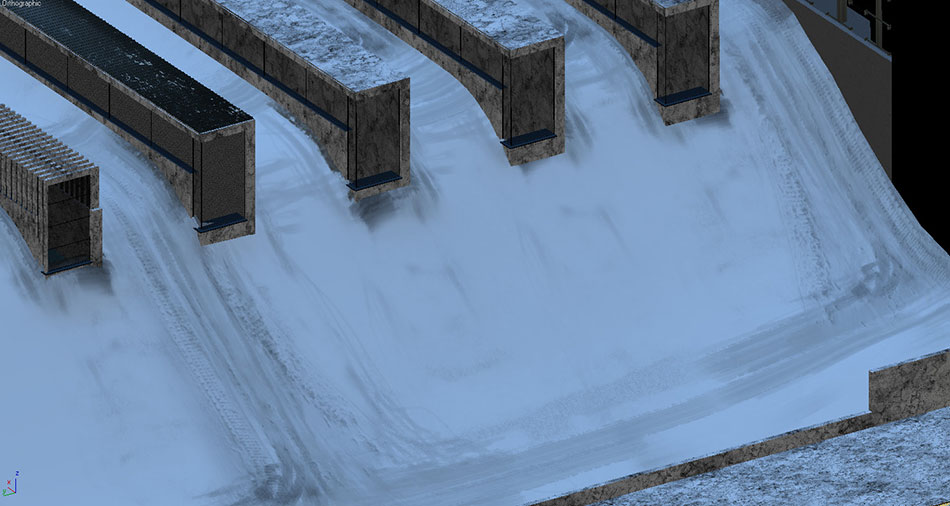
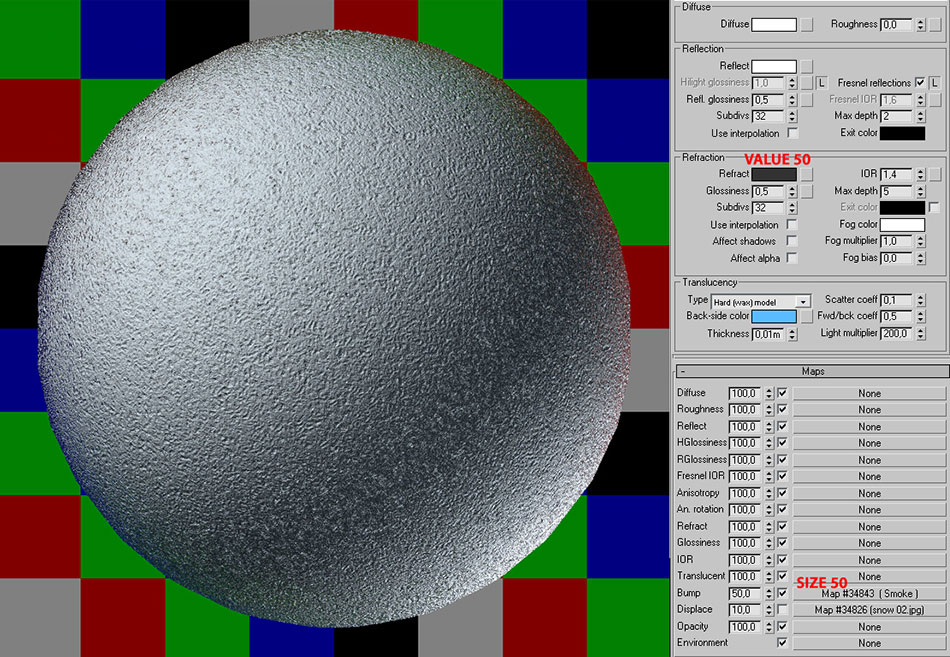
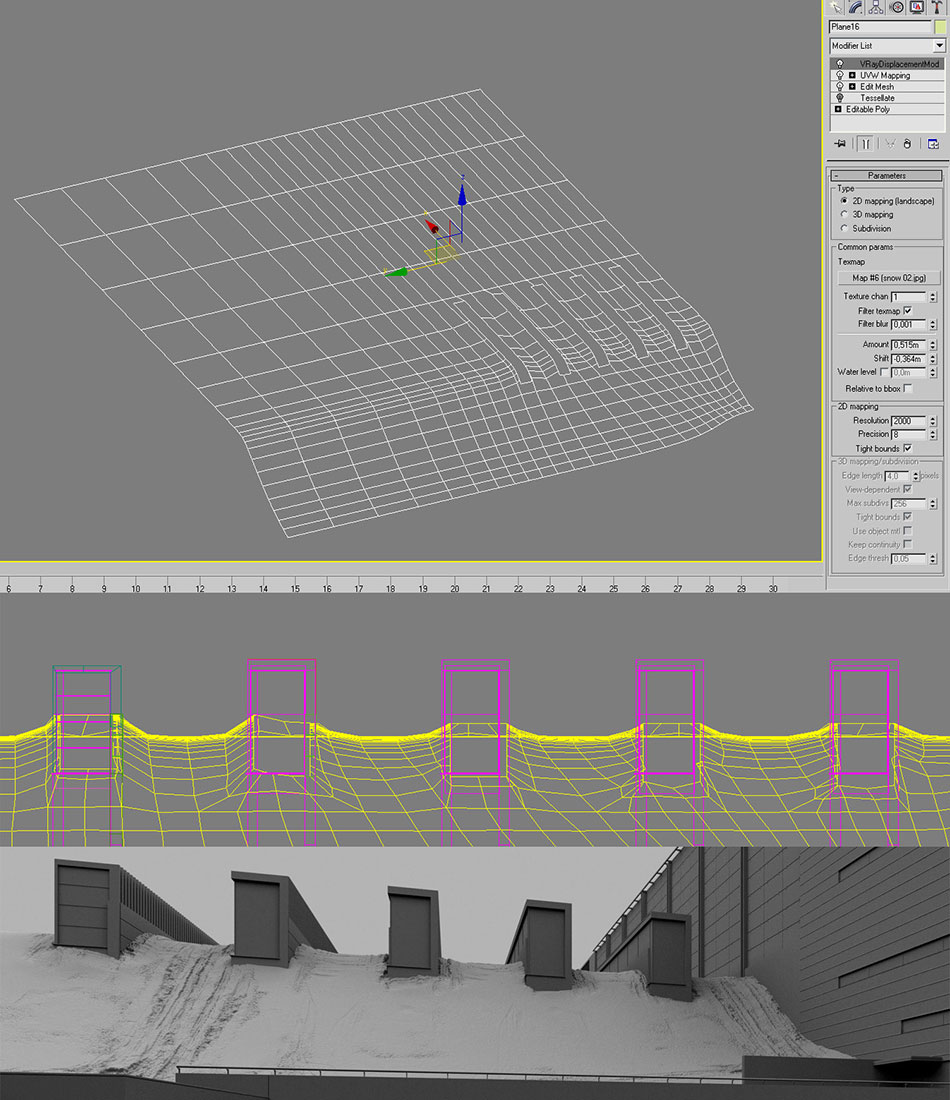
The snow and the terrain is actually rendered. It is a simple plane nothing special. As a matter of fact it is more than just one plane. It's at least 4 or 5 planes I put down so from the camera it looks like one whole thing but it's actually more small parts. You couldn't just fly up and take a look around cause then you would notice that it's falling apart and only comes together from that particular view. I formed the planes to follow the slopes using primitive tools such as FFD box. I used edit mesh smooth selection to lift the terrain a bit next to walls like the snow is kinda climbing up there a bit. I always apply a noise modifier too and a turbosmooth or at least a tesselate modifier to make the ground uneven but smooth. The tracks and such marks in the snow was done by a simple displacement modifier. I took a snapshot from a top view and then drew a map in Photoshop from the bitmaps I found on the net. Pretty simple again and worked just fine! It has a translucent hard wax type refractive material with a bluish back color.
The grass
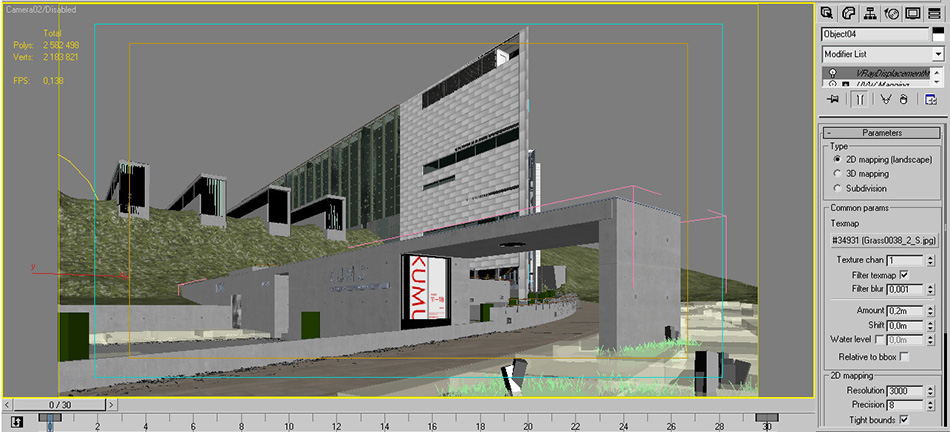
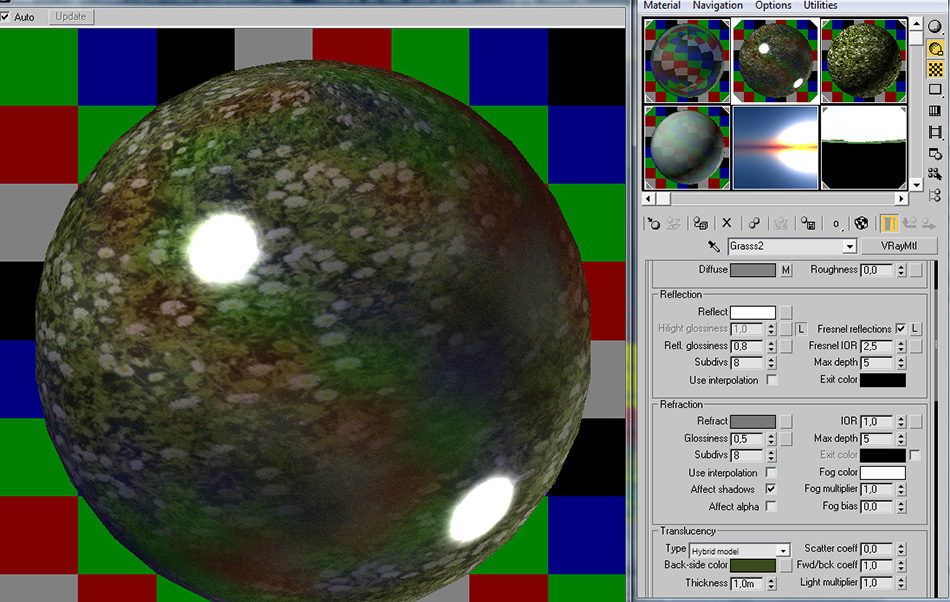
The grass was partially modelled and partially done by displacement. Obviously only used model when it was close to the camera (only in the fall render). It was done by that old trick: I modelled a few single grass straws and scattered them on a patch then converted them into a vray proxy and about done! I did two kinda patches. One with a shorter grass and one with longer. The longer was used at the bottom of the wall in the foreground. For the rest I used the same method Red Vertex taught. There are two terrains. The first has a translucent material and a displacement modifier and the other has the same material except with no refraction at all and no displacement. For the diffuse I used a bitmap with a meadow with flowers to make the landscape more colorful.
The materials
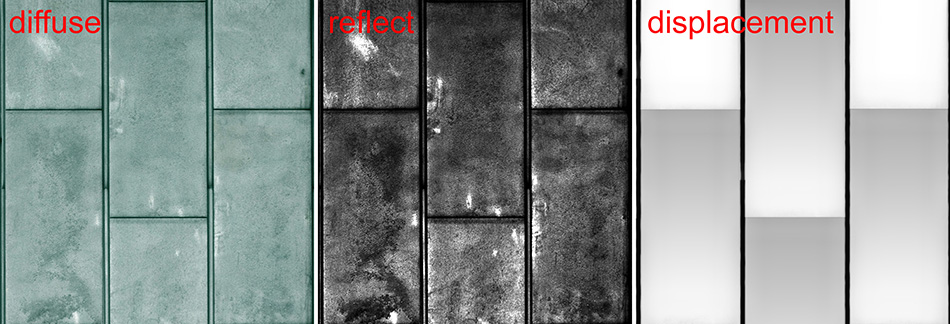
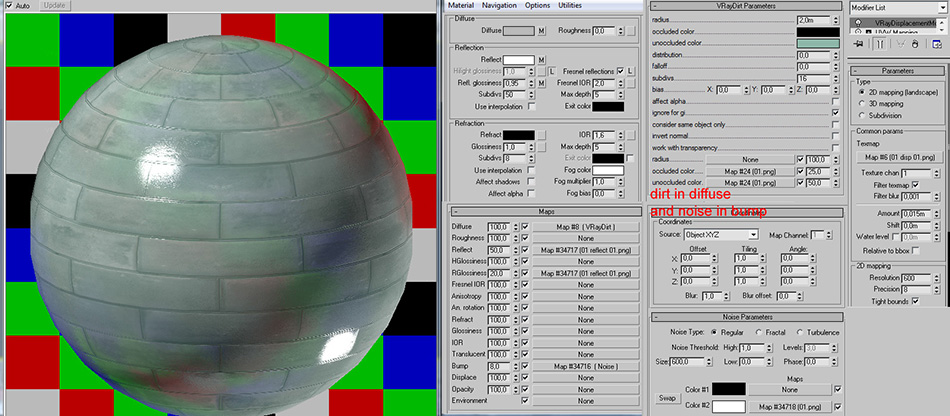
There are 2 particular materials that caused me a lot of trouble. One is the greenish metal housing on the walls the other is the stone wall in the other side of the interior. Biggest problem for them both were the fact that they appear on such huge surfaces the bitmaps had to be really large to avoid making them look too repetative. The maps were put together by me in Photoshop. Their size were 10 000 x 10 000. I only showing a 100 percent zoom in detail of the maps. I also made other bitmaps for other details.
Lighting
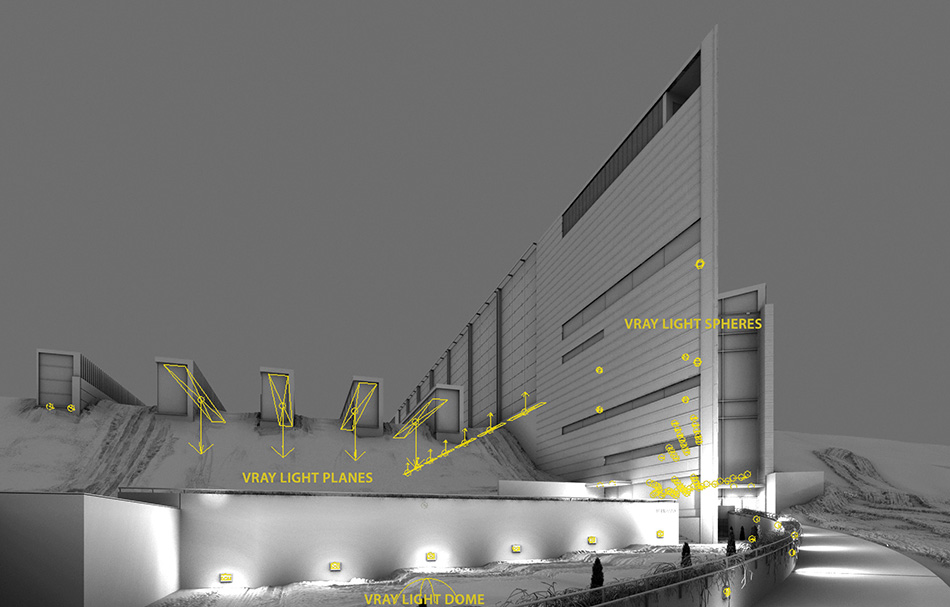
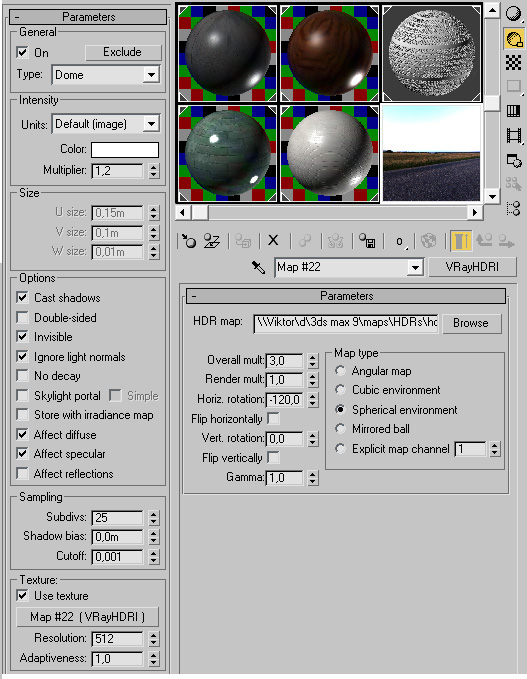
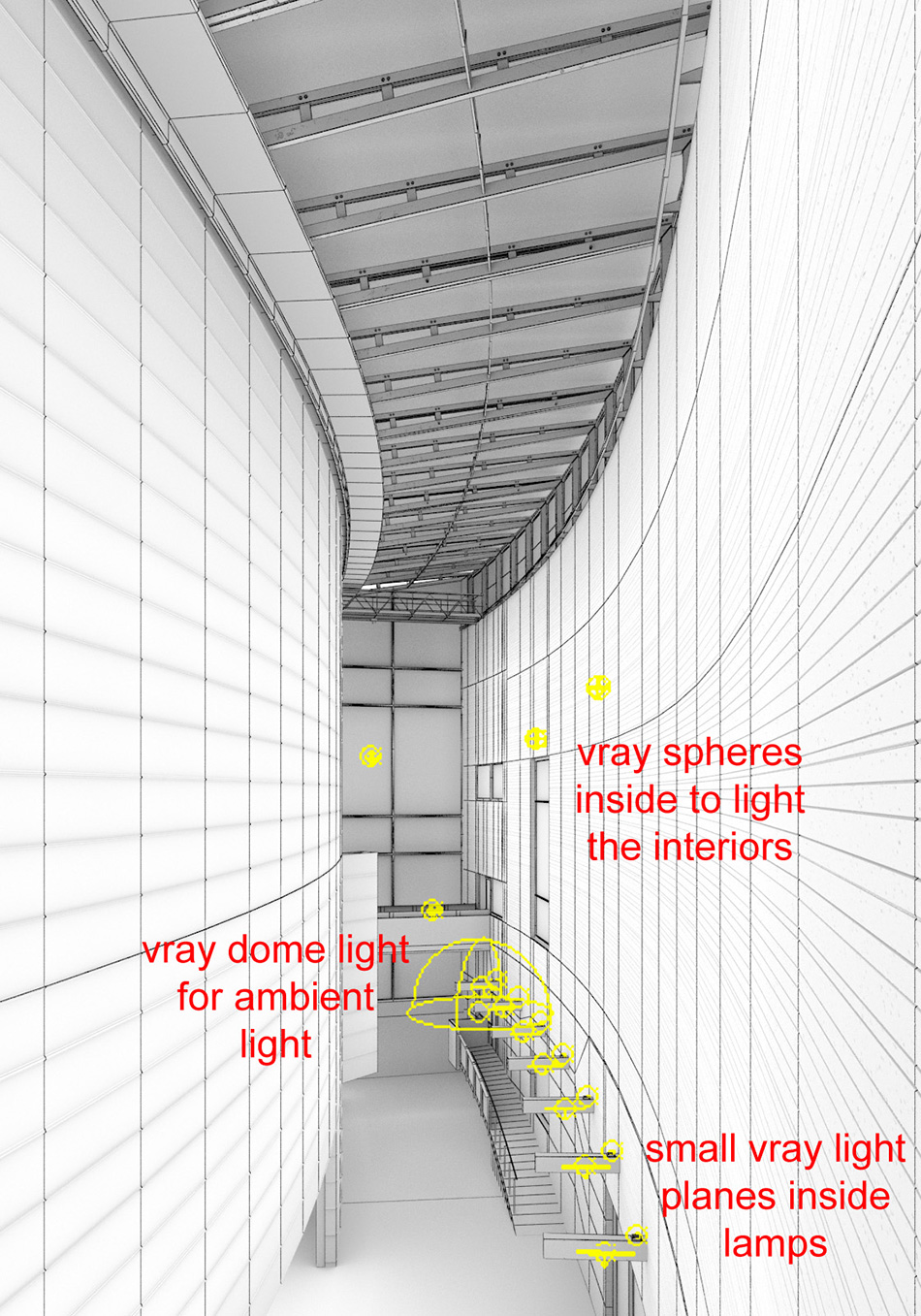
I used a vray dome light for the diffuse light in the exterior scenes as well as for the interiors. I couldn't have done it using vray planes in the windows as usual because this particular round interior has different openings from a lot of directions. For the texture slot I used an HDRI and sometimes only a bitmap. If there were any sunlight in the sun that was provided by a vray sun.
Rendering
Nothing much to mention here. I'll just show my settings. If there's anything you don't see here it most probably means I left it on the default setting. The light sources samles are mostly on 32. Somewhere I took back from that and some times I raised it to 50. The samples of reflection/refraction is the same. The irradiance map Hsph subdivs had to be high at the night shots and could be recreased with a lot at the daylight shots. As always I used 1.0 gamma. I'm not a fan of LWF. I read about it and I know how much better it is but I just don't see that. In fact I don't see no differece in the end result at all...
Post process
I try to show you these with images rather than describing with words. I know that most of you who read this are interested in the scene with all the snow. So I have to appologize that the final PSD file was damaged I could not open it. Therefor the one I'm presenting here shows an earlier stage of the process althou the analogy is literally the same.
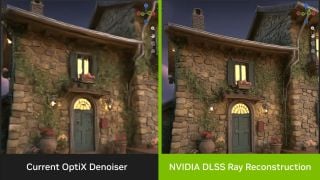
Blender 5.3 arrives November 10 with DLSS 4.5 Ray Reconstruction, an AI-powered denoiser for Cycles that works on RTX 20–50 series cards. The upgrade promises faster interactive lighting workflows at near-final quality.
Chaos released V-Ray for Blender 7.4 with Windows ARM64 compatibility, Phoenix Ocean textures for exterior scenes, Quick Sun Caustics for realistic lighting, and tools to organize large asset libraries and migrate from Blender's native renderer.
Maxon's October 2026 release adds procedural vegetation scattering, reworked GPU memory management in Redshift, and liquid simulation—streamlining environment work and viewport iteration for archviz studios.
A free community plugin now lets 3ds Max users with older GPUs access neural rendering via DLSS 5, potentially speeding up renders without hardware upgrades.
Working in CG and archviz often means balancing creative intent with production realities. Human presence can support scale, context, and clarity, but it also adds another layer of decisions. Ready-made 3D character assets help keep visual focus where it belongs without expanding the project scope beyond its real needs
Maxon's October 2026 release adds procedural vegetation scattering, reworked GPU memory management in Redshift, and liquid simulation—streamlining environment work and viewport iteration for archviz studios.
Amazing! Thanks Viktor. But how exactly to you "blend" your cool and warm layers together?! just by changing layer to livid layer or something, or do you paint it in with clipping masks? would love to know how you do that.
Cheers
dear jhoptract: simply put them on top of each other and change the oppacity to the perfect ammount. and if at some places youd want the image to be warmer (for example around lights) you erase the cold layer a bit.
jhoptract
2010.06.02
report
Amazing! Thanks Viktor. But how exactly to you "blend" your cool and warm layers together?! just by changing layer to livid layer or something, or do you paint it in with clipping masks? would love to know how you do that. Cheers
thanks a lot for this great making of and compliment for your work!
I only have two doubt: how is made the dirt pass you use in your renders? it's similar to ambient occlusion? and what's the blending mode you use to blend the warmtone layer and the coldtone layer with the original image? thanks a lot again!!
by blending the layers i only meant putting them on top of each other and adjusting the oppacity! they are all on normal blending mode of course!!!
near the lights i erase the cold tones a bit.
the dirt layer is pretty easy. you just load in the desired dirt bitmap to photoshop and copy paste it as a new layer on top of your render. switch it to overlay layer and strech it to the part where u would like to see it!
Many thanks to post this making of Viktor...i think your last work it's simply amazing and i really want to improve my ability to reach that result eheh
Thanks for sharing a lot of inspiring tips and methods of your workflow. You works are really very nice and reading your tutorial is very inspiring. Best Wishes For You :)
Beautiful ... just beautiful. Especially the one with the snow.
One question though: I don't get what you mean by "For the rest I used the same method Red Vertex taught. There are two terrains. The first has a translucent material and a displacement modifier and the other has the same material except with no refraction at all and no displacement."
Could you elaborate a bit, please?!
Big Thank for tutorial Viktor. Just one question: can you share your settings for Domelight and vray spherelights in the interior. I've tried to use Domelight in the interior for ambient, but I cannot achieve any satisfying result with it.
The scene is fantastic, but I was curious about your settings for the irradiance map. The values of the HSph and Interp. samples in my opinion are too high, you have used these values for any particular reason?
lovley work, really nice! could someone explain the signifigance of the tonal enhancements though? i mean the warm and cold tones, are these just overlayed in PS? how are they obtained etc?
Would you open this lesson more? Because I'm just a beginner. I like to model, but with post-processing is bad. I would be very grateful if you shared the experience across all settings, or at least what you can show to a stranger. Sorry for my English :)
HELLO, I NEED YOUR HELP, FIRST WORK IS BEAUTIFUL IN THIS MUSEUM IS TO ADMIRE,,
AND WANTED TO KNOW IF I COULD GIVE A COPY OF THE MODEL IN 3D FOR THE ATTEMPT TO RENDER, is a task of my universe, And I would greatly appreciate,, would be helpful,, my email is [email protected]
THANKS .. MUCH HELP ME IF I PROVIDED THE MODEL, THANK YOU ..
ATT: JOSE SUAREZ
ARCHITECTURE STUDENT
Very nice tutorial. Thank you very much. Would you please send me a copy of your max file. I'm interested a lot about the lighting and the atmosphere that you could reached. My mail is [email protected]. Thanks a lot again.
In this walkthrough, we guide you through the process of building a polished 3D interior scene inspired by the cover of Archmodels vol. 306 – Table Sets.



 Customer zone
 Your orders
 Edit account
 Add project
 Liked projects
 View your artist profile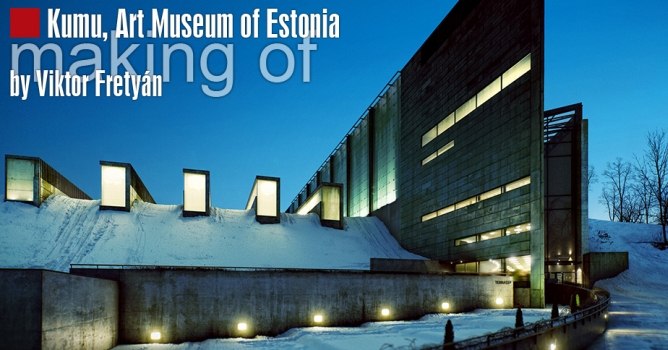




















COMMENTS