|
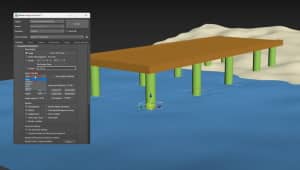
I prepared very simple scene for you. It contains a hill and two trees (Foliage) lit by one direct target light. Before we start, we will hide both trees, for we wonīt need them now.
|

|
First we create blade from box, which we subsequently turn to editable poly. Then collapse upper vertices of box and scale lower vertices to make blade thin. We rename this box blade01.
|

|
Copy blade01 while holding down shift key to make blade02. Place this blade to the opposite side of the hill. We will use two blades to create more reailistic grass.
Finally we create very simple materials for both blades.
So the scene is now prepared for creation grass itself.
|

|
In Command panel/Geometry find Particle systems. Click on PArray and in viewport create PARRAY icon. Rename this Pblade01.
|

|
At first rollout click Pick object and choose the hill. This tells PArray on which object the grass will be generated.
|

|
Other parameters serve to form the particles. Lets describe them...
- Over Entire Surface - particles are placed randomly over entire surface.
- Along Visible Edges - particles are placed randomly along visible edges.
- At All Vertices - particles are placed randomly over all vertices.
- At Distinct Points - we can affect the placement of particles using Total value. This value determines the amount of emmited points randomly over entire objectīs surface.
- At Face Centers - particles are always placed in the middle of every single face.
For us the default setting of Particle Formation should suffice. So we will let the option Over Entire Surface on.
|

|
Icon Size -just determines size of PArray icon.
Icon Hidden - hides PArray icon.
|

|
Viewport Display - here we can choose the way how the particles are represented in viewports. We can choose from: Dots, Ticks, Mesh.
We will use Mesh for our example.
About Percentage of ParticlesI will tell more later on.
|

|
Expand the Particle Type rollout where we can set the type of particles and then we will assign blade01 to the chosen type.
- In Particle Types choose Instanced Geometry - This will allow you to use objects instead of particles.
- In Instancing Parameters click on Pick Object and choose blade01.
- Thatīs all in this rollout, so we can close it.
|

|
Open the Particle Generation rollout where we will set almost last setting of the whole tutorial.
- PArray is designed mostly for special particle effects such as explosions etc. So we must alter some setting and forbid the animation of particles.
- At Particle Motion entry, set all values on 0.
- Speed ? affects the speed of particles.
- At Paticle Timing entry set Emit Start on 0 (tells in which frame the particles will start generating) and Emit Stop (tells in which frame the particles will stop generating) and Life on 101 so that the particles wonīt disappear. (The Life value determines the duration of particles)
- At Particle Size entry set Grow For and Fade For on 0. (These values allow you to enlarge and decrease particles). And set the value of Size as you wish (size of particles).
- Finally we will look at Particle Quantity option, where we can set the quantity of particles in our scene.
For our case we will check Use Total with value 35000.
|

|
Here comes the right moment for Percentage of Particles. This value determines the percentage amount of particles showed in viewport. if we choose 100%, we will have real amount of particels in viewport.
Use this setting for better manipulation in viewport.
|

|
Now assign the material to Parray and render scene.
The grass is too symmetrical, so we use other blade and finally we screw the grass a bit up :)
|

|
Now copy Pblade01 to the other side of the hill using shift button. In this new PArray object, change only Instancing Parameters on Blade02 and change value of Particle Quantity / Use total on 25000. Finally change the size of blades using Particle Size. Iīve rised value of Size a bit higher than at the first PArray.
Assign second material to the second PArray (same as blade02) and render scene.
|

|
We can change particle rotation for higher realism. So open last rollout Rotation and Collision and at option Spin Speed Controls change value of Phase. At firstPArray on 25 and at second on15 for example.
Finally unhide hidden trees and render scene.
Thatīs all..thanks for your attention..bye bye ;)
|