|
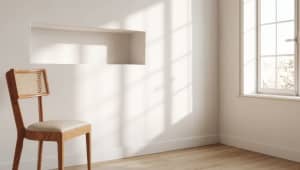
First of all we have to prepare a
photo that we use. To assign correct perspective we need 5
points in 2 dimentions. 4 points which belongs to first plane
and one point which belongs to secound plane. |

|
Now we can import our 3d model into
the scene and setup our photo as perspective viewport background
(Alt+B). |

|
Because we have to work very
accurate, the best thing at this time is hide all 3d object
except those 2 walls that we need to 'camera match' (right click
> hide unselected). |

|
At this moment we can put 5 cam point ( Helpers
> Camera Match > CamPoint ). It is very important to do it with
'Snap Toggle' option = ON. We have also remember about right
sequence. |

|
When we create campoints we can
assign them into the right position on our photo. ( Utilities >
Camera Match ). First of all we have to select CamPoint (i use
edit > 'select by name' option), than swich 'USE THIS POINT' on,
swich 'ASSIGN POSITION' on and finally click on a background in
a position when we want campoint be assigned to. We repeat this five times.
|

|
After assigning all 5 CamPoints
into the photo all we have to do is juts click 'CREATE CAMERA'.
important note: it is really possible that in this point you get
the camera that not match with your photo. It means that you
created your campoints which don`t belongs to one plane! just
delate them and create one more time cerfully!
|

|
Now we have right camera
perspective. Finaly we can start working with our materials,
lights etc. |